E‑Ink Tablets for Notes: What It’s Like to Replace Your Paper Notebook
E‑ink note tablets feel like paper but work like a quiet computer. Here’s what they do well, where they frustrate, and how to choose one.
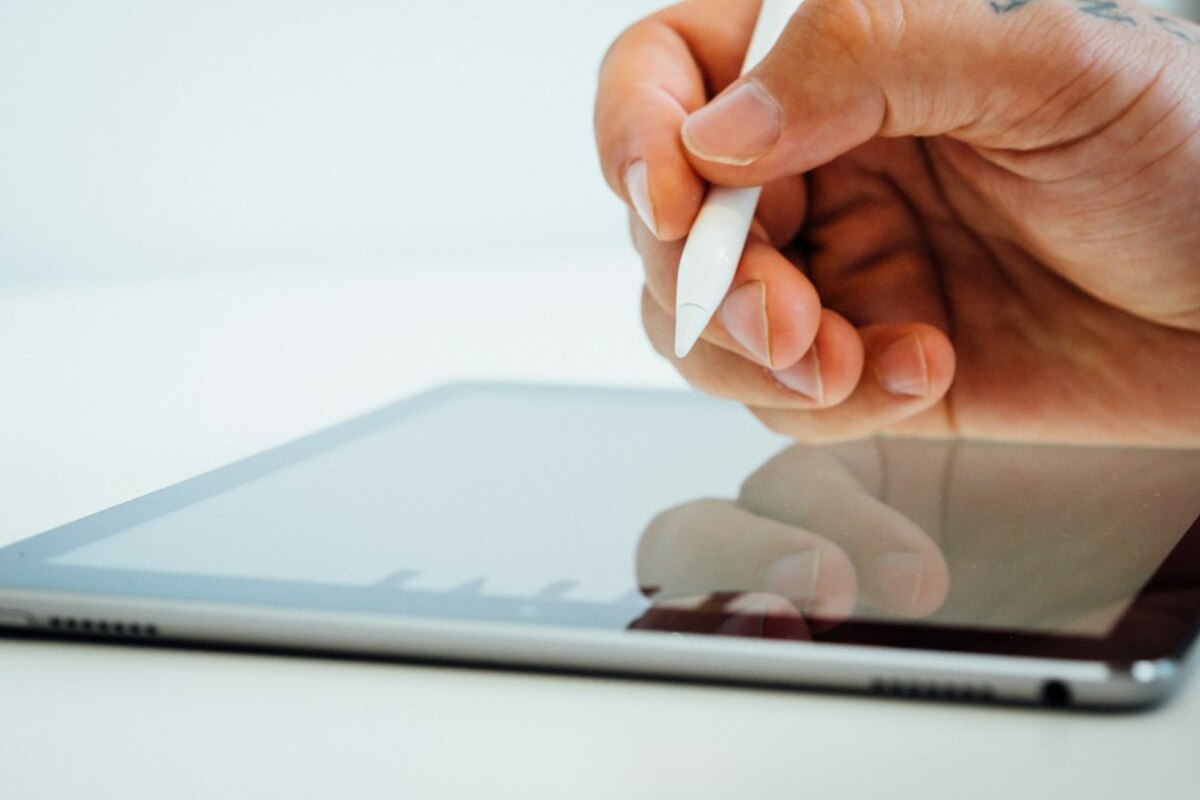
- E‑ink tablets are built for reading and handwriting, not for flashy apps—think “paper notebook with cloud backup.”
- The best benefits show up in real routines: meeting notes, studying, journaling, and PDF markups without eye fatigue.
- Choosing one comes down to latency, writing feel, file export, and how locked-in you are to a brand’s ecosystem.
What an e‑ink note tablet actually is (and why people keep buying them)
Imagine your favorite notebook—same calm, same “nothing pops up” focus—but with three superpowers: infinite pages, instant search (sometimes), and a backup that doesn’t disappear when you spill coffee. That’s the core idea behind an e‑ink note tablet.
Unlike an iPad or Android tablet, an e‑ink device uses a display closer to a Kindle: it looks like paper, reflects ambient light instead of blasting your eyes, and sips battery for days (sometimes weeks). Many models add a stylus layer so you can write, sketch, highlight PDFs, and organize notes into folders.
People don’t buy them because they’re “more powerful.” They buy them because they’re less distracting and more comfortable for long sessions. If your day includes meetings, lectures, reading PDFs, or planning, an e‑ink tablet can feel like the tech version of tidying your desk: suddenly there’s space to think.
Here’s a quick real‑life scenario: you walk into a meeting with a single slim tablet instead of a laptop, charger, and a pile of papers. You jot notes by hand, circle action items, then later export the page as a PDF to your team chat. No fan noise, no notifications, no glowing rectangle shouting for attention.

How it feels in daily life: the good, the “huh?”, and the deal‑breakers
The appeal is surprisingly emotional: the writing experience can be satisfying. Many devices ship with a textured screen protector or a stylus tip designed to mimic pen-on-paper friction. It’s not identical to paper, but it’s close enough that people who hate “glass writing” often tolerate or even enjoy it.
But e‑ink has quirks. The display refresh is slower than LCD/OLED screens. That’s fine for reading and writing, but you’ll notice it when scrolling quickly, moving objects around, or switching between complex pages. Some devices handle it better than others, but the “paper-like” look comes with “paper-like” speed.
What it’s great for (where e‑ink shines):
- Meeting notes and to‑dos: Write fast, then file notes by project. Some models can convert handwriting to text (results vary based on handwriting and language).
- Studying and reading PDFs: Highlight, annotate margins, and keep everything in one place without printing.
- Journaling: A private, focused space that won’t tempt you into doomscrolling.
- Long reading sessions: The screen is easier on many eyes, especially in bright rooms.
Where people get surprised (the “huh?” moments):
- It’s not a normal tablet: You usually can’t run your full set of apps, and web browsing (if available) can be clunky.
- Color is limited: Many are grayscale. Color e‑ink exists, but it’s often dimmer, more expensive, and slower than you might expect.
- Sync can be brand-specific: Some devices rely on a company cloud service. If you prefer Dropbox/Google Drive/OneDrive, check support first.
Potential deal‑breakers (things to know before you buy):
- PDF workflows vary a lot: Some devices are amazing for PDFs; others feel cramped or slow with large documents.
- Handwriting search may not exist: A few ecosystems can search handwritten notes; many can’t, or only after conversion.
- Replacement nibs and accessories: Stylus tips wear down. That’s normal, but it’s an ongoing cost.
If you’re wondering whether it’s “worth it,” a useful analogy is a paper upgrade, not a laptop replacement. An e‑ink note tablet is a dedicated tool—like buying a great kitchen knife. It won’t cook for you, but it can make cooking feel smoother every day.
| Task | E‑ink note tablet | Regular tablet (iPad/Android) |
|---|---|---|
| Handwriting comfort | Paper-like feel, low eye strain for many | Smooth glass feel unless you add a matte protector |
| Distractions | Usually minimal, limited apps | High—notifications, social apps, multitasking |
| Battery life | Often days to weeks | Usually hours to a couple days |
| PDF reading/markup | Excellent on larger screens; slower page turns | Fast and smooth; brighter screen |
| Apps + flexibility | Limited by design | Very flexible |
How to choose one without getting lost in specs
Shopping for e‑ink note tablets can feel confusing because the spec sheets don’t tell you the most important things: Does it feel good to write on? Can it fit into your workflow? Will your notes be easy to access in five years?
Here are the practical factors that matter most, explained in normal‑human terms:
1) Screen size: the “paper size” decision
Think in notebook sizes:
- 7–8 inches: Portable and cozy for quick notes, but can feel tight for PDFs.
- 10–11 inches: The popular “do most things well” size—comfortable for writing and decent for documents.
- 13 inches: Best if you live in PDFs (contracts, academic papers, sheet music). Less portable, more desk-friendly.
2) Writing latency: does the ink “keep up”?
Latency is the delay between your pen movement and the line appearing. On good devices it’s low enough that your brain forgets it’s digital. On weaker ones, it feels like writing with a marker that’s running out of ink—your hand moves, and the line catches up a beat later. If you can try one in a store, write quickly, scribble, and draw loops. Your gut reaction is a valid test.
3) The “paper feel”: texture matters more than you think
Some people love a smoother glide; others want a scratchy pencil-like drag. Devices may use textured films, different pen tips, or both. If reviews mention “glass-like,” that’s a hint you may want a matte protector (which can reduce clarity slightly).
4) Organization: folders, tags, and templates
A notebook is naturally organized by time: page 1, then page 2. Digital notes need a system or they become a junk drawer. Look for features like:
- Folders and nested folders (work > projects > meetings)
- Tags (so “invoice” shows up across multiple notebooks)
- Templates (daily planner, Cornell notes, habit tracker, dotted grid)
A small but real quality-of-life detail: can you quickly flip between recent documents, like you’d stick two fingers into two pages of a real notebook?
5) Export and backup: your future self will care
Before you buy, ask: “How do my notes leave this device?” Common options include:
- PDF export (best for sharing and archiving)
- PNG/JPG export (useful for quick images in chat)
- Text export (only if handwriting recognition is supported)
- Cloud sync (company cloud, or third-party like Google Drive/Dropbox/OneDrive)
If your job has compliance rules or you simply prefer control, check whether the device works well via USB transfer and whether exports are straightforward without extra subscriptions.
6) Reading at night: front light vs. no light
Some e‑ink note tablets include a front light (like many e‑readers). It shines light onto the screen rather than through it, which can feel gentler. Others have no light at all, meaning you’ll need a lamp—very “paper-like,” but not always convenient.
7) Ecosystem lock‑in: subtle, but real
With certain brands, your notes may live in a proprietary format internally, even if you can export PDFs. That’s not automatically bad, but you should know what you’re signing up for. A good mental model: treat it like buying into a notebook brand where the refills only fit that binder. You can still photocopy pages, but the “master copy” lives in their system.
Usually no. It can replace your paper notebooks and reduce how often you need a full tablet for reading and markup. But for email, spreadsheets, video calls, heavy web browsing, and creative apps, a normal tablet or laptop still wins.
Usually no. It can replace your paper notebooks and reduce how often you need a full tablet for reading and markup. But for email, spreadsheets, video calls, heavy web browsing, and creative apps, a normal tablet or laptop still wins.
They can be excellent for handwritten notes and reading PDFs—especially if you’re juggling multiple classes and hate carrying binders. The main question is whether your coursework needs specific apps (lab software, LMS features, collaboration tools) that an e‑ink device can’t run.
They can be excellent for handwritten notes and reading PDFs—especially if you’re juggling multiple classes and hate carrying binders. The main question is whether your coursework needs specific apps (lab software, LMS features, collaboration tools) that an e‑ink device can’t run.
Sync and export expectations. Many people assume it will behave like Google Docs across devices. In reality, some e‑ink tablets feel more like a digital filing cabinet: great on the device, fine when exported, but not always seamless for real-time collaboration.
Sync and export expectations. Many people assume it will behave like Google Docs across devices. In reality, some e‑ink tablets feel more like a digital filing cabinet: great on the device, fine when exported, but not always seamless for real-time collaboration.
If you’re curious but unsure, a simple “trial” approach is to map your week of paper use. Count how many times you: (1) take handwritten notes, (2) print or annotate a PDF, (3) lose track of a page, or (4) rewrite the same to‑do list. E‑ink note tablets help most when those moments happen often—and when you want the calm of paper with the safety net of digital.