What Passkeys Are (and Why Your Next Login Might Not Need a Password)
Passkeys are replacing passwords with a faster, safer “unlock-to-sign-in” method. Here’s how they work, where you’ll see them, and how to switch without stress.
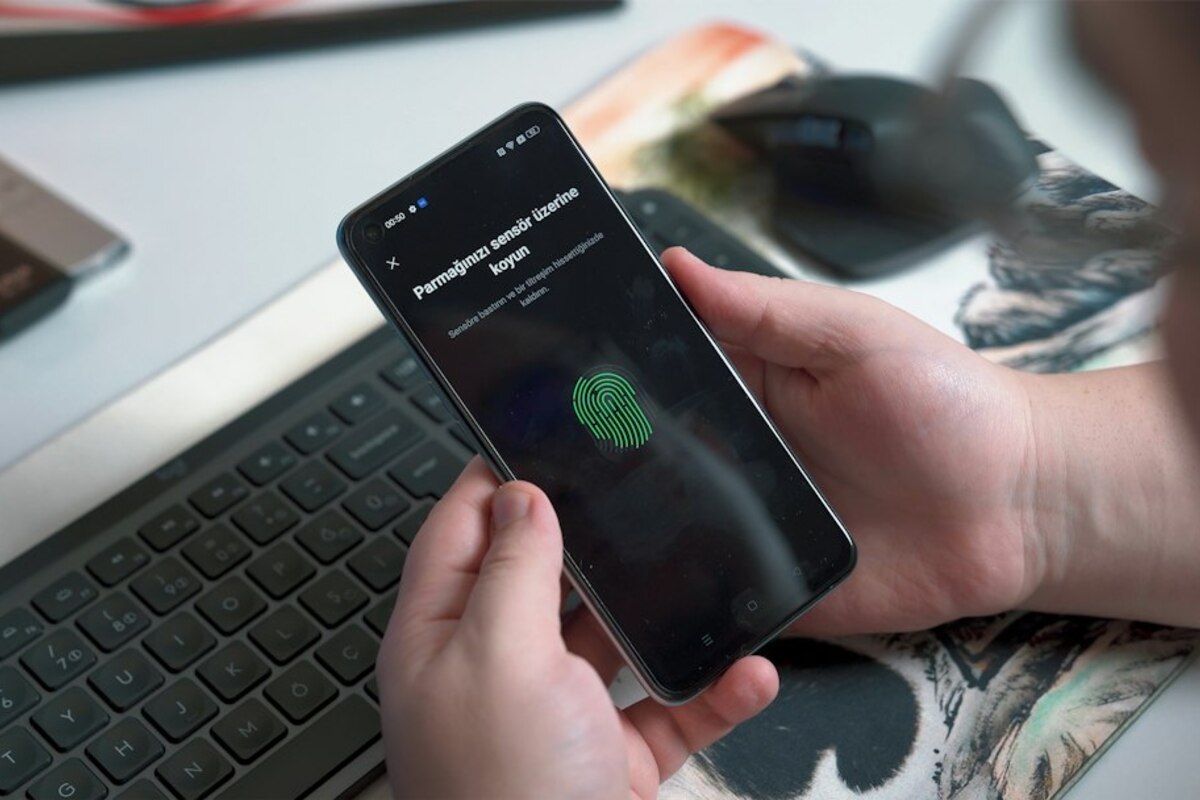
- Passkeys let you sign in with Face ID/Touch ID or a device PIN instead of a password.
- They’re designed to stop phishing because there’s no reusable secret to steal.
- You can use them across devices, but it helps to plan for lost phones and shared accounts.
Passwords are failing in the most human way
Most of us don’t have a “security problem.” We have a memory and time problem.
You create an account for a grocery delivery app. It insists on 12 characters, a symbol, a number, a capital letter, and no re-used passwords. You comply. Three weeks later you’re logging in from a new laptop, your password manager isn’t syncing, and you’re staring at the “Forgot password?” link like it’s an old friend.
Passwords also fail because they can be copied. If someone tricks you into typing your password on a fake site (phishing), they can reuse it on the real site. Even if you use a strong password, it’s still a reusable key you’re carrying around and handing over to websites every time you log in.
Passkeys are a newer approach that tries to solve this with a simple idea: what if logging in worked more like unlocking your phone? Instead of remembering and typing a secret, you prove it’s you using Face ID, Touch ID, Windows Hello, or your device PIN.

So what exactly is a passkey?
A passkey is a login method that uses cryptography (the same kind of math behind secure connections) so you can sign in without a traditional password. In everyday terms, it’s a “tap to approve” sign-in that’s tied to you and your device.
When you create a passkey on a website or app, your device generates two related pieces:
- A public key that gets stored by the website (it’s safe to share).
- A private key that stays on your device (it’s not shared).
When you log in, the website sends a challenge. Your device uses the private key to answer it, and the website checks the response with the public key it already has. The important part: your private key never leaves your device, and there’s no password for you to type into a phishing page.
To make sure it’s really you using the device, the passkey is typically “unlocked” by:
- Face recognition (Face ID)
- Fingerprint (Touch ID)
- A device PIN (like your phone unlock code)
- On computers: Windows Hello or similar biometrics
That’s why passkeys feel familiar: they borrow the “unlock” action you already do dozens of times a day.
| Feature | Passwords | Passkeys |
|---|---|---|
| What you present to log in | A reusable secret you type | A cryptographic proof unlocked by your device |
| Phishing risk | High (you can be tricked into typing it) | Low (no typed secret to steal) |
| What the website stores | Usually a password hash (still a target) | A public key (not useful for logins by itself) |
| Everyday experience | Typing, remembering, resetting | Approve with Face ID/Touch ID/PIN |
| When you get a new device | Log in again and manage passwords | Depends on your ecosystem and sync settings |
One more practical detail: you’ll often see passkeys offered alongside other login choices, at least for now. Many services still keep passwords as a backup while passkeys roll out.
Where you’ll notice passkeys in real life (and why people like them)
Passkeys are showing up on popular services because they reduce two big headaches at once: account takeovers for companies and login frustration for users.
Here are a few everyday scenarios where passkeys shine:
1) The “new laptop” moment
You buy a new computer, go to sign in to a site, and you can’t remember whether you used a special character or a different email. With passkeys, the flow often becomes: choose “Sign in with passkey,” approve on your phone (or use your computer’s biometric login), and you’re in—no password juggling.
2) The “suspicious email” trap
You get an email saying your account will be locked unless you sign in. The link leads to a convincing fake site. A password can be typed and stolen. A passkey typically can’t be handed over the same way because the approval is tied to the legitimate domain the key was created for. Even if you land on a fake page, it can’t complete the cryptographic handshake for the real service.
3) The “shared family account” puzzle
Some households share streaming or shopping accounts. Passwords are easy to share (sometimes too easy). Passkeys can change that dynamic: instead of texting a password, you might add another device/account member or keep a fallback method for shared access. This can be more secure, but it requires a bit more setup.
Companies also like passkeys because they can reduce costly support issues: fewer password resets, fewer locked accounts, and fewer compromised logins. Users like them because it’s faster and feels more natural: look at the camera, tap a button, done.
No. “Sign in with Google/Apple” is a federated login where one company vouches for you to another. A passkey is a login credential created specifically for a site/app, stored on your device (and optionally synced), and unlocked with biometrics or a PIN.
No. “Sign in with Google/Apple” is a federated login where one company vouches for you to another. A passkey is a login credential created specifically for a site/app, stored on your device (and optionally synced), and unlocked with biometrics or a PIN.
Typically, no. Your fingerprint/face scan is used locally to unlock the passkey on your device. The site receives a cryptographic proof, not your biometric data.
Typically, no. Your fingerprint/face scan is used locally to unlock the passkey on your device. The site receives a cryptographic proof, not your biometric data.
They’re different, but related. Two-factor authentication (2FA) adds an extra check on top of a password. Passkeys aim to replace the password itself with a stronger method. Some services may still add extra checks for sensitive actions.
They’re different, but related. Two-factor authentication (2FA) adds an extra check on top of a password. Passkeys aim to replace the password itself with a stronger method. Some services may still add extra checks for sensitive actions.
How to start using passkeys without locking yourself out
Passkeys are designed to be easier than passwords, but the transition period can feel confusing because different devices and services handle them in slightly different ways. A little planning goes a long way.
Step 1: Find where a service offers it
Most sites that support passkeys will mention them in one of these places:
- Account Settings → Security
- Login & Authentication
- Password / Passkey / 2FA settings
Look for buttons like “Create passkey,” “Add passkey,” or “Sign in with passkey.”
Step 2: Decide where your passkeys will live
In practice, passkeys are stored in a system that can sync across your devices (depending on your setup). This is convenient, but it also means you should think about recovery.
- If you mainly use an iPhone and a Mac, you’ll likely want passkeys available across those devices.
- If you use Android and Windows, you’ll want to check that your phone and PC can both access your passkeys or that you have a reliable cross-device sign-in method.
The day-to-day experience you want is: “I can sign in on my laptop even if my phone is in another room.” Or, if you’re okay with approvals on your phone: “I can sign in anywhere as long as I have my phone.” Both are valid—just different.
Step 3: Keep at least one backup path
Even if a site supports passkeys, keep a backup login method until you’re confident. Common backups include:
- A password (ideally stored in a password manager)
- A recovery email and phone number that you’ve verified
- Recovery codes stored somewhere safe (not only on the device you might lose)
This matters most for your primary accounts: email, banking, cloud storage, and anything tied to work access.
Step 4: Understand “new phone” and “lost phone” realities
A common worry is: “If my passkey is on my phone and I lose it, am I locked out forever?” Usually, you can recover if you have backups and your passkeys are synced, but it depends on the service and your device setup.
Think of your phone like a wallet: if you lose it, you don’t want it to be the only place your identity lives. Having a second trusted device (a tablet or laptop) and up-to-date recovery options can turn a disaster into an inconvenience.
Step 5: Watch out for shared-workflow friction
Passkeys are personal by design. That’s great for security, but it can clash with how people actually work:
- Team accounts: If a team shares one login for a tool, passkeys may push you toward individual accounts (better) or more deliberate sharing features.
- Household accounts: You may need to add family members properly instead of passing around a password.
- Temporary access: For a contractor or short-term collaboration, you might prefer role-based access rather than giving out a universal credential.
A quick mental model that makes passkeys easier to trust
Imagine a hotel room with a keycard system:
- A password is like telling the front desk your room’s secret phrase every time you enter. Anyone who overhears it can use it.
- A passkey is like having a keycard that works only for your room, and the card never gets copied onto the front desk computer. You just tap/approve to unlock.
Websites that support passkeys are basically saying: “We’d rather you prove you have the right key than keep repeating a secret.”
What you’ll likely see next
As more apps adopt passkeys, login screens may start feeling less like “type a password” and more like “choose how to approve.” You’ll probably encounter a mix for a while: passwords, passkeys, and one-time codes coexisting. During that transition, the smoothest experience usually comes from setting up passkeys first on your most-used device and ensuring you have a second way back in.
Small sign you’re doing it right: the next time a suspicious login link lands in your inbox, you’ll realize you can’t easily hand over anything valuable by accident—because there’s nothing reusable to type.