What Wi‑Fi Calling Is—and Why Your Phone Can Work in “No Signal” Spots
Wi‑Fi Calling lets your phone place calls and send texts over Wi‑Fi when cell signal is weak. Here’s how it works, when it helps, and what to watch for.
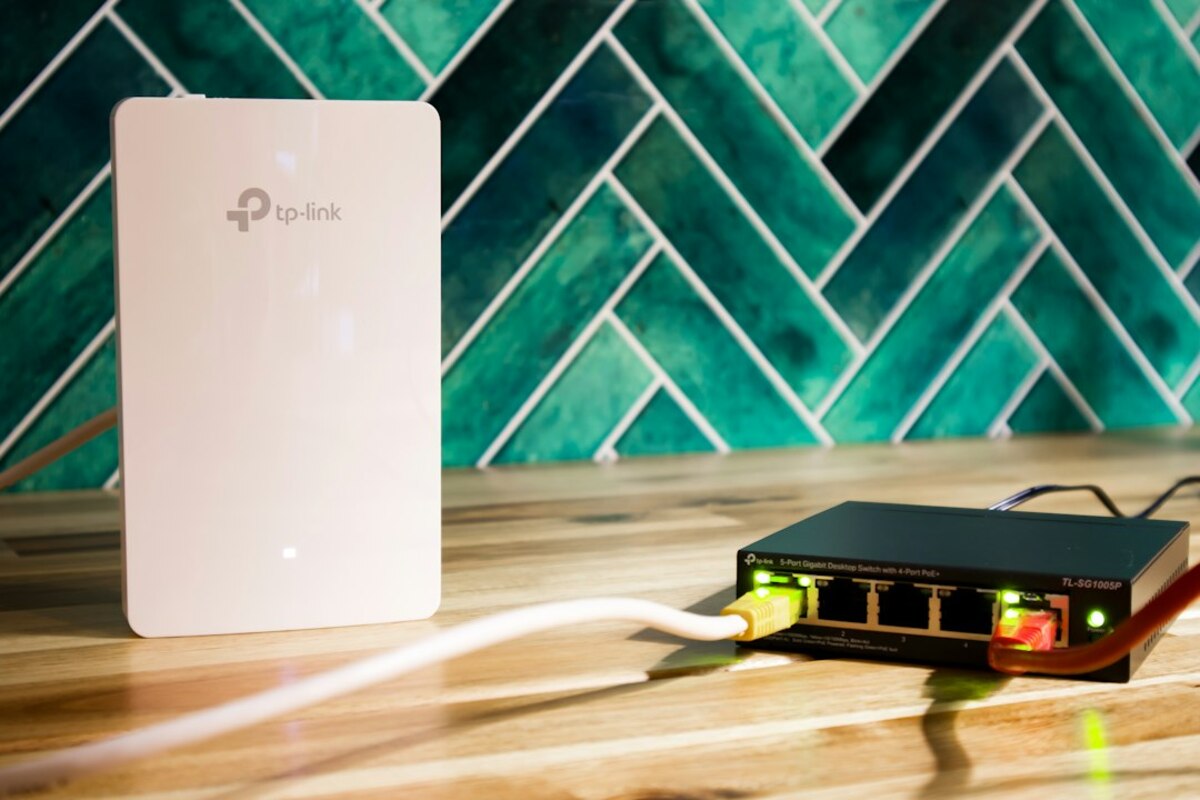
- Wi‑Fi Calling routes calls and SMS through a Wi‑Fi network, not the cell tower—often saving you in basements, elevators, and rural homes.
- It usually keeps your same phone number and works with most carriers and modern phones, but emergency calling and location can behave differently.
- Call quality depends on your Wi‑Fi and router setup; a few small tweaks can make it noticeably more reliable.
When your phone has “no bars”… but still rings
Picture this: you’re at home, your phone shows one bar (or none), and every call turns into a robot-voice mess. You step onto the balcony and it suddenly works—until you go back inside. Or you’re in a grocery store, an office building, a basement apartment, a hospital corridor, or an elevator lobby where cell signal fades into nothing.
Wi‑Fi Calling is the feature that can make those places feel normal again. Instead of relying only on the nearest cell tower, your phone can place and receive calls (and usually send SMS texts) through a Wi‑Fi connection—using your regular phone number. To you, it looks like a normal call. Behind the scenes, it’s more like your phone is taking a different road to reach the phone network.
A useful analogy: imagine your voice is a package that needs to reach the post office. Normally, your phone drives it there via the “cell tower highway.” Wi‑Fi Calling lets your phone use the “Wi‑Fi neighborhood streets” to get to the same post office when the highway is blocked or too far away.
It’s not a new idea, but it’s become more important as people work from home, travel, and spend time in buildings with energy-efficient materials (which can also block radio signals). It’s also one of those phone settings many people never turn on—until the day they really need it.

How Wi‑Fi Calling works (in plain English)
Without getting overly technical, a normal cell call starts as a radio connection between your phone and a nearby cell tower. With Wi‑Fi Calling, the first hop changes:
- Normal call: Phone → cell tower → carrier network → the other person
- Wi‑Fi call: Phone → Wi‑Fi router → internet connection → carrier network → the other person
Even though your voice is traveling over the internet for part of the trip, it’s still treated like a regular phone call by your carrier. That’s why:
- You typically keep your same phone number.
- You can usually call regular phone numbers (not just app-to-app calling).
- Your phone’s dialer and call history work as expected.
Most carriers label it as Wi‑Fi Calling or sometimes Voice over Wi‑Fi (VoWiFi). On many phones, you’ll see a small indicator like “Wi‑Fi Calling” or a Wi‑Fi icon near the signal bars when it’s active.
It’s different from:
- WhatsApp/FaceTime/Zoom calls: Those are app-based internet calls and usually require the other person to use the same app. Wi‑Fi Calling works with the normal phone system.
- Wi‑Fi: Wi‑Fi itself is just the local wireless connection. Wi‑Fi Calling is a carrier feature that uses Wi‑Fi as the path to the carrier.
- Hotspot: A hotspot shares one device’s internet to another. Wi‑Fi Calling is about making phone calls through Wi‑Fi.
Here’s a quick reality check: Wi‑Fi Calling doesn’t magically improve a bad internet connection. If your Wi‑Fi is slow, overloaded, or unstable, call quality can be worse than cellular. But in places with weak cell reception and decent Wi‑Fi, it can feel like flipping a switch from “unusable” to “perfectly fine.”
| Situation | Cellular call | Wi‑Fi Calling | What you’ll likely notice |
|---|---|---|---|
| Basement / interior room | Often drops or won’t connect | Often works well | Calls stop cutting out if Wi‑Fi is strong |
| Crowded event (network congestion) | May fail due to overloaded towers | May help if Wi‑Fi is available and stable | Better chance of connecting—unless Wi‑Fi is also overloaded |
| Rural home with weak towers | Spotty coverage | Can be a game-changer | Home becomes “callable” without stepping outside |
| Fast-moving car/train | Generally better than Wi‑Fi | Usually not ideal | Wi‑Fi handoffs can cause drops |
Real-life scenarios: where it shines (and where it can surprise you)
Scenario 1: The “my kitchen is a dead zone” home. You can browse the internet fine on Wi‑Fi, but calls drop when you’re not near a window. Turning on Wi‑Fi Calling often solves this instantly, because the call no longer depends on your phone reaching a distant tower through walls, appliances, and insulation.
Scenario 2: The office building that blocks signal. Modern buildings can act like signal shields. If your company Wi‑Fi is strong (and allows it), Wi‑Fi Calling can restore normal calling without you having to stand in the parking lot.
Scenario 3: International travel (the part people misunderstand). Wi‑Fi Calling can be helpful abroad, especially for receiving calls or contacting home—but how it’s billed depends on your carrier and plan. Some carriers treat calls to your home country as if you’re at home when you’re on Wi‑Fi; others may treat it differently. The safe move is to check your carrier’s Wi‑Fi Calling and roaming rules before you rely on it for long calls.
Scenario 4: Emergency calls. This is where “it’s just like normal calling” has a few important footnotes. Traditional cellular 911 (or your local emergency number) can automatically provide location information based on tower and GPS signals. With Wi‑Fi Calling, your phone may depend more on an address you registered with your carrier (or other location methods), which may not always match where you are right now—especially if you’re on public Wi‑Fi in a café or hotel. This doesn’t mean you shouldn’t use it; it means you should know what your phone and carrier do in your region and keep your emergency address updated if prompted.
Scenario 5: “Why did my call sound worse on Wi‑Fi?” If your Wi‑Fi is shared with gaming, video streaming, or large downloads, voice packets can get delayed. That delay can create choppy audio, echoes, or moments where you talk over each other. It’s not that Wi‑Fi Calling is bad—it’s that voice is picky about timing.
No—on most phones it’s built into the dialer and settings. You turn it on once, and your phone uses it automatically when conditions are right.
No—on most phones it’s built into the dialer and settings. You turn it on once, and your phone uses it automatically when conditions are right.
It uses your Wi‑Fi internet connection for the call’s transport. Billing is usually treated like a normal call by your carrier (minutes/plan rules still apply). If you’re on someone else’s Wi‑Fi or a limited connection, it can count against that network’s data cap.
It uses your Wi‑Fi internet connection for the call’s transport. Billing is usually treated like a normal call by your carrier (minutes/plan rules still apply). If you’re on someone else’s Wi‑Fi or a limited connection, it can count against that network’s data cap.
Often yes for standard SMS, and usually for carrier messaging features. App-based messaging (iMessage, WhatsApp, Signal) already uses the internet and doesn’t depend on Wi‑Fi Calling.
Often yes for standard SMS, and usually for carrier messaging features. App-based messaging (iMessage, WhatsApp, Signal) already uses the internet and doesn’t depend on Wi‑Fi Calling.
A small but useful detail: Wi‑Fi Calling isn’t the same as “Wi‑Fi only mode.” If you have both cellular and Wi‑Fi available, your phone and carrier decide which route to use. Some devices prefer cellular unless it’s truly weak; others switch more aggressively. If you notice it not using Wi‑Fi Calling when you want it to, you may need to adjust settings (where available) or improve Wi‑Fi quality.
What can affect whether it works:
- Your carrier support: Many carriers support it, but some prepaid plans, older SIMs, or specific account types can be exceptions.
- Your phone model: Most modern iPhones and Android phones support it, but carrier-approved models work best.
- Your Wi‑Fi network: Some workplace or hotel networks restrict the kind of secure connection Wi‑Fi Calling uses.
Practical tip: If Wi‑Fi Calling works at home but not at work, it may not be your phone at all—it can be the office network blocking or limiting the required traffic. In that case, switching to a different Wi‑Fi network (or asking IT) can make the difference.
How to make Wi‑Fi Calling feel more reliable (without becoming a techie)
If Wi‑Fi Calling is on but feels inconsistent, the fix is often less about the phone and more about the Wi‑Fi environment. A voice call is lightweight in data, but sensitive to delay and dropouts—like a conversation where the hallway keeps cutting sound in and out.
1) Check your Wi‑Fi signal where you usually take calls
If you’re taking calls in the far corner of a house, the Wi‑Fi might be the weak link. A mesh system, an additional access point, or simply moving the router can help more than people expect. Even rotating the router or raising it off the floor can improve coverage.
2) Reduce “busy Wi‑Fi” moments
If calls get choppy at the same time every night, it might be when everyone starts streaming video. Many modern routers offer Quality of Service (QoS) settings that prioritize voice traffic. You don’t have to perfect it—just enabling a basic “video/voice priority” mode can help.
3) Prefer 5 GHz or 6 GHz when you’re close; 2.4 GHz when you’re far
This sounds nerdy, but the idea is simple: faster Wi‑Fi bands (5/6 GHz) are great near the router; longer-range 2.4 GHz is better through walls. If your phone keeps clinging to a weak 5 GHz signal, switching to the stronger band can stabilize calls.
4) Watch out for “captive portals” and public Wi‑Fi quirks
Some networks require you to sign in via a web page (common in hotels and cafés). Until you complete that step, Wi‑Fi Calling won’t work even though the Wi‑Fi icon appears. Even after sign-in, public Wi‑Fi can be noisy and unpredictable.
5) Know what happens when you leave Wi‑Fi mid-call
Depending on your carrier and phone, a call might seamlessly switch from Wi‑Fi to cellular (or it might drop). If you regularly pace around the house or walk outside during calls, test it once: start a call on Wi‑Fi, then walk toward the edge of coverage. If it drops, you’ll know to stay within Wi‑Fi range for important calls—or to start the call on cellular if you’re about to leave.
6) Keep your emergency address updated (if your carrier asks for it)
Some carriers prompt you to set an emergency address when enabling Wi‑Fi Calling. It’s worth doing carefully, especially if you use Wi‑Fi Calling in a fixed location like home. If you move, update it.
7) If you use multiple devices, understand the “same number” effect
Some ecosystems allow calls to ring on tablets or laptops too. That’s convenient, but it can also cause confusion when a call rings everywhere or when audio switches devices unexpectedly. If you get echo or switching issues, try answering on one device consistently.
A quick “is it working?” checklist
- Wi‑Fi is connected and stable (try loading a webpage quickly).
- Wi‑Fi Calling is enabled in phone settings.
- You see a Wi‑Fi Calling indicator near the signal bars (varies by device/carrier).
- Airplane Mode test (optional): turn on Airplane Mode, then re-enable Wi‑Fi; try making a call. If it works, you’re truly calling over Wi‑Fi.
One more everyday detail: If you’re using Wi‑Fi Calling on a shared connection (like a dorm or coworking space), you may notice calls sound perfect in the morning and worse in the evening. That’s not your imagination—shared networks get busier.
Wi‑Fi Calling is one of those features that doesn’t feel exciting until it saves you from a very real annoyance: missed calls, broken conversations, and the awkward “Can you hear me now?” loop. If your home or workplace has reliable Wi‑Fi but unreliable cellular reception, enabling it can be the simplest upgrade you make this year—no new phone required.